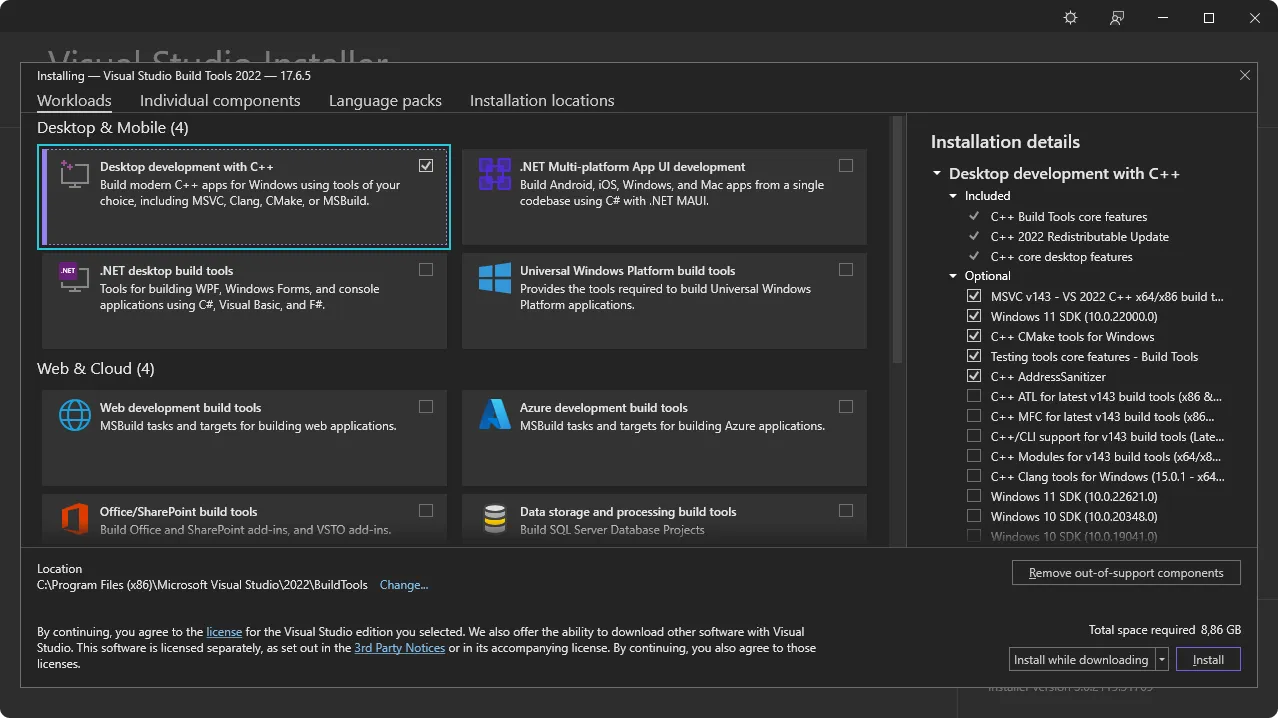
Tauri requires various system dependencies for development on Linux. These may be different depending on your distribution but we’ve included some popular distributions below to help you get setup.
Note: Alpine Linux containers don’t include any fonts by default. To ensure text renders correctly in your Tauri app, install at least one font package (for example, font-dejavu ).
Note: Alpine targets the musl C library, so Rust builds link a number of system libraries statically. If cargo/pnpm tauri build fails with linker errors for symbols from libraries that pkg-config reports as present, install the matching *-static packages alongside the -dev ones above:
Terminal window
sudoapkadd--no-cache\
openssl-libs-static\
cairo-static\
harfbuzz-static\
glib-static\
wayland-static\
zlib-static
Not every dependency Tauri pulls in is packaged as *-static on Alpine; in those cases you may need to build the missing static library from source.
If your distribution isn’t included above then you may want to check Awesome Tauri on GitHub to see if a guide has been created.
Be sure to launch Xcode after installing so that it can finish setting up.
Only developing for desktop targets?
If you’re only planning to develop desktop apps and not targeting iOS then you can install Xcode Command Line Tools instead:
Building MSI packages on Windows requires the VBSCRIPT optional feature to be enabled. This feature is enabled by default on most Windows installations, but may have been disabled on some systems.
If you encounter errors like failed to run light.exe when building MSI packages, you may need to enable the VBSCRIPT feature:
Open Settings → Apps → Optional features → More Windows features
Locate VBSCRIPT in the list and ensure it’s checked
Click Next and restart your computer if prompted
Note: VBSCRIPT is currently enabled by default on most Windows installations, but is being deprecated and may be disabled in future Windows versions.
Tauri is built with Rust and requires it for development. Install Rust using one of following methods. You can view more installation methods at https://www.rust-lang.org/tools/install.
Go to the Node.js website, download the Long Term Support (LTS) version and install it.
Check if Node was successfully installed by running:
Terminal window
node-v
# v20.10.0
npm-v
# 10.2.3
It’s important to restart your Terminal to ensure it recognizes the new installation. In some cases, you might need to restart your computer.
While npm is the default package manager for Node.js, you can also use others like pnpm or yarn. To enable these, run corepack enable in your Terminal. This step is optional and only needed if you prefer using a package manager other than npm.
Use the SDK Manager in Android Studio to install the following:
Android SDK Platform
Android SDK Platform-Tools
NDK (Side by side)
Android SDK Build-Tools
Android SDK Command-line Tools
Selecting “Show Package Details” in the SDK Manager enables the installation of older package versions. Only install older versions if necessary, as they may introduce compatibility issues or security risks.
Set ANDROID_HOME and NDK_HOME environment variables.